Assignment Coverage
To access Insights, go to https://insights.carexm.com
You will use the same login information that you use to access CXM to log into Insights. This means that if you change your CXM password, it will update in Insights as well.
Your CXM user must have the Analytics toggle turned ON in order to log into Insights.
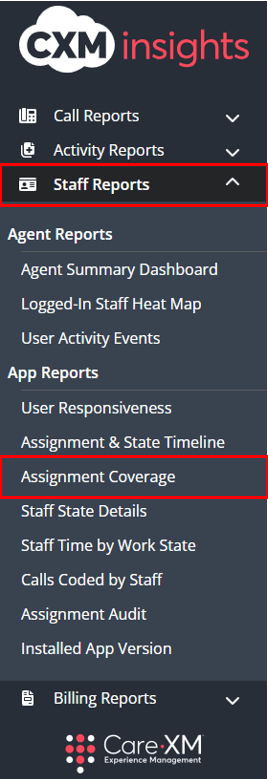
Once logged in, you will be on the landing page and can choose from the different reports by hovering over the category in the left side bar:

Choose "Staff Reports", then "Assignment Coverage".
The Assignment Coverage report shows when specific assignments were covered on the Total Triage Mobile App for an organization over a period of time. Different users will display on the dashboard in different colors for an easier viewing experience.
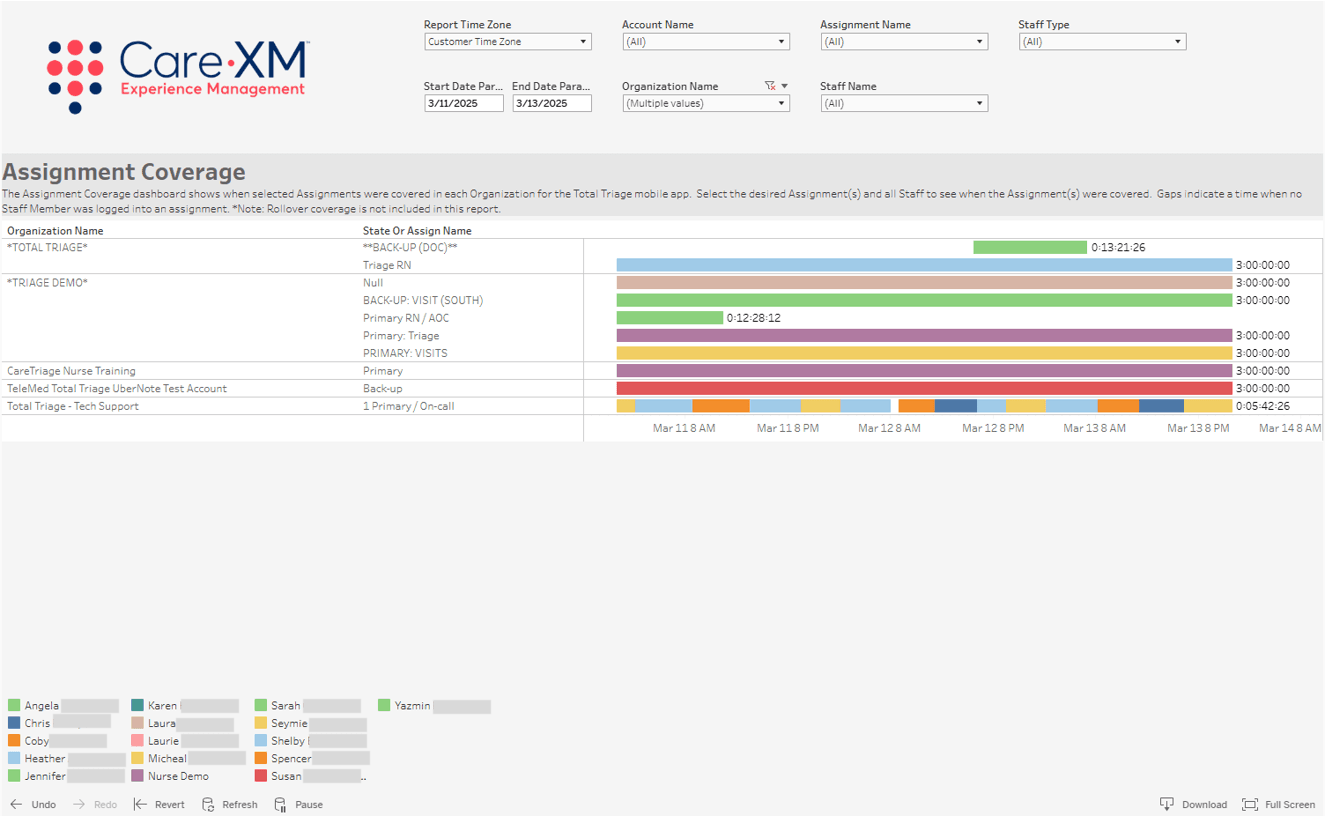
The report can be filtered by Time Zone, Account Name, Assignment Name, Staff Type, Date Range, Organization Name, and Staff Name.

- Report Time Zone: The report will process the data in the customer's time zone. To switch time zones, click on the drop down and choose the correct option.
- Account Name: This filter allows users to select their high-level group organization.
- Assignment Name: This filter allows users to select the assignment selected by staff member(s) on the app.
- Staff Type: This filter allows users to select from Administrator, Nurse, and/or Support Staff.
- Date Range: The default date is the previous 24 hours. To look up a specific date range, manually enter the date.
- Organization Name: This filter allows the user to select the organization(s) for which they want to see data. Only Organization(s) that the user has access to AND that have data in the selected time frame will be shown in the filter options.
- Staff Name: This filter allows users to select the name of staff member who took call.
Note: For report to filter correctly, click on the "Apply" button on the bottom of each filter's drop down. Only applies if the list exceeds 10 options.

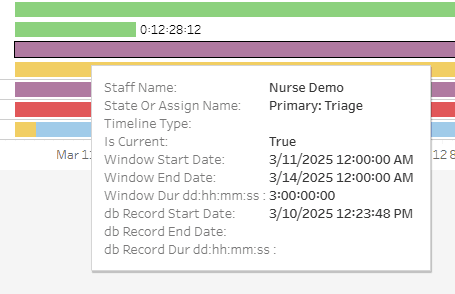
Hover over each bar to to gain insight into which user was logged in, when they started and ended the assignment, and the total duration the user was logged in to the Assignment.
To Download, select "Download" in the lower right hand corner of the report:
Choose your file format:
