Call Dashboard
To access Insights, go to https://insights.carexm.com
You will use the same login information that you use to access CXM to log into Insights. This means that if you change your CXM password, it will update in Insights as well.
Your CXM user must have the Analytics toggle turned ON in order to log into Insights.
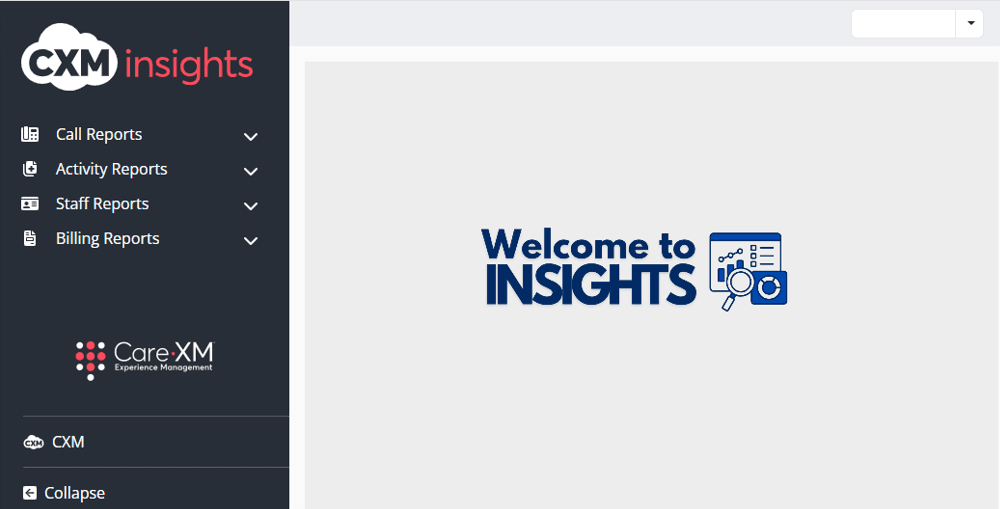
Once logged in, you will be on the landing page and can choose from the different reports by hovering over the category in the left side bar:
Choose "Call Reports", then "Call Dashboard":
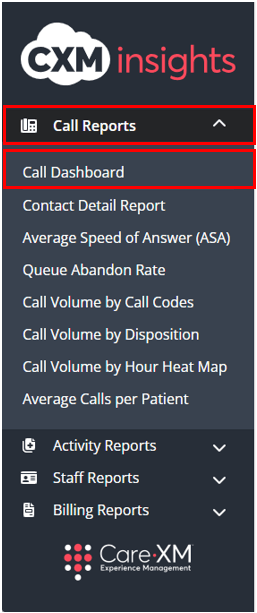
The Call Dashboard has six tiles reporting the Call Volume, Average Speed of Answer (ASA), Average Handle Time (AHT), SLA Percentage (Calls Answered under a specified amount of seconds), and the Percentage of Calls Answered by Team. Each tile/report has a row for each team (except for the Top Activity Call Codes report). On the bottom, there is a summary table with data relevant to the report.

This report can be filtered by Report Time Zone, Date Range, Organization Name, Team, Organization State, Region, Office Hours, Agent Group, and Call Direction.

- Report Time Zone - Defaults to time zone of the organization selected. Allows user to choose time zone to view data.
- Start Date & End Date - Choose date range. The default start and end dates display the previous 10 days. Change the dates to display a specific time period.
- Organization - Choose organization(s) to view in the dashboard. Defaults to all, user will only see organizations they have access to.
- Team - This filter allows the user to see only what was created by a specific team. For example, if filtered down to CareTriage, the report would only show data for calls handled by CareTriage.
- CareAssist - Calls taken by CareXM Non-Clinical team (Patient Care Advocates).
- CareTriage - Calls taken by CareXM Clinical team (Registered Nurses).
- CXM App - Calls taken in the Legacy CXM App (Total Triage).
- CXM - Calls taken by Enterprise client users.
- Note: User will only see Teams used by organizations they have access to. Each team has their own color representing their data.
- Organization State - This filter allows users to filter the list of Organizations down to those located in the selected geographical state(s). By default, all Organization States will be selected.
- Region - This filter allows users to filter large organizations by the Regions set on the Organization page, and quickly filters to a group of Organizations in a specific geographical area.
- Office Hours - This filter allows users to filter the data to show Calls or Activities that occurred only during Office Hours or After Hours.
- Agent Group - This filter allows users to filter call reports down to call volume handled by different groups of agents within the call center. (Enterprise clients only)
- Call Direction - This filter allows users to select whether the reported data displays inbound calls and/or outbound calls.
Note: For report to filter correctly, click on the "Apply" button on the bottom of each filter's drop down. Only applies if the list exceeds 10 options.

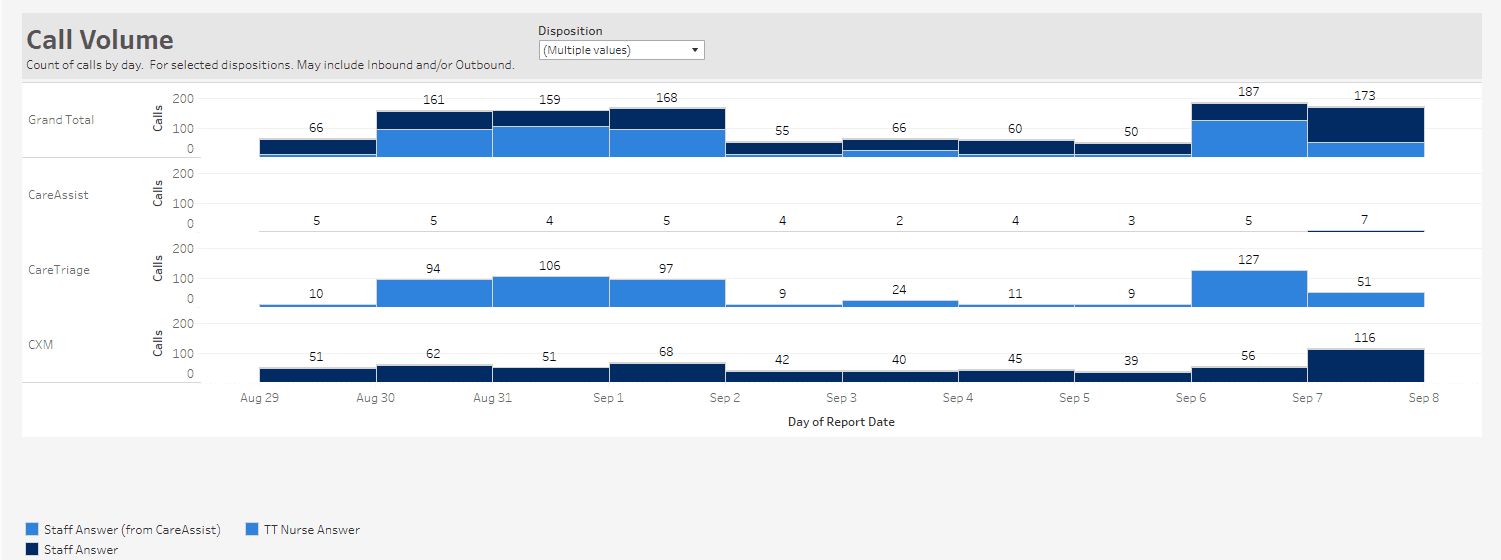
Call Volume -This tile shows the call volume as a bar graph broken out by volume (inbound and/or outbound) by each Team (CareAssist, CareTriage, CXM, CXM App, and Grand Total). The Call Dispositions shown in the tile include: Queue Abandon, TT Nurse Answer, UN Staff Answer, and Staff Answer. On the top right corner of the tile you can choose a Disposition so the data can adjust and show the relevant Call Dispositions to the Organization(s) selected in the filters.
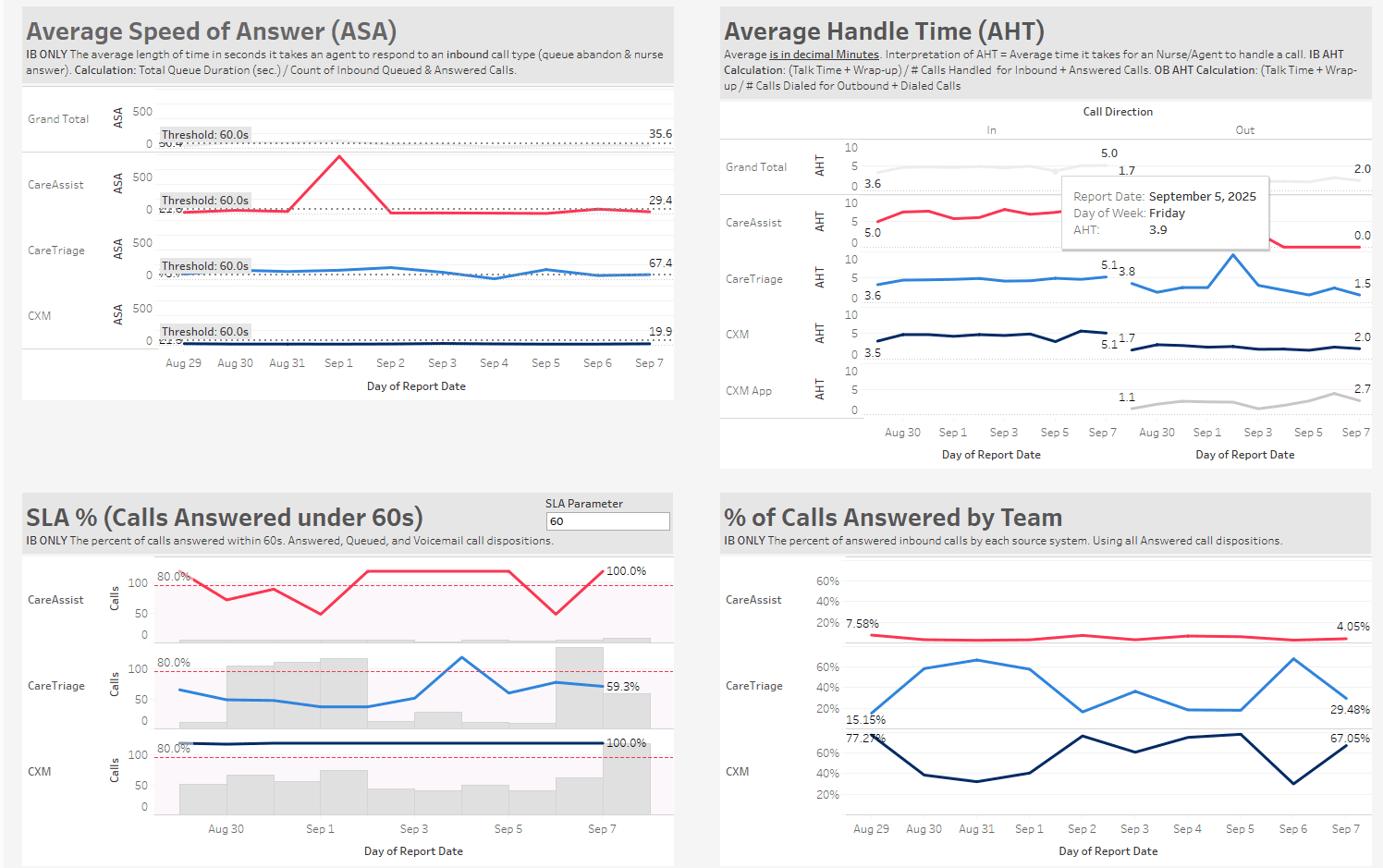
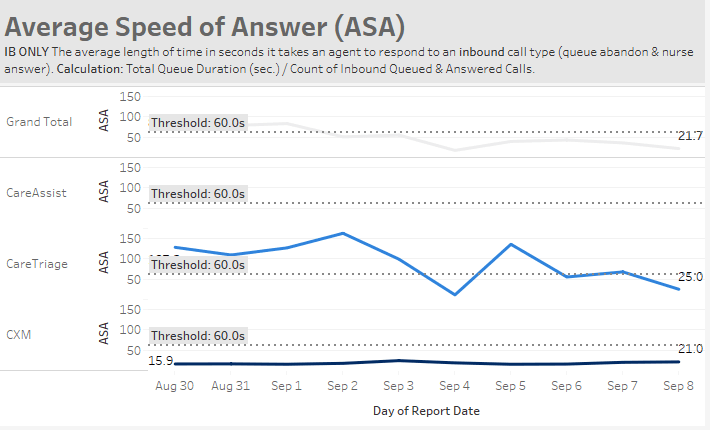
Average Speed of Answer (ASA) - This tile shows the average length of time in seconds it takes an agent to respond to an inbound call. Total Queue Duration (seconds)/ Count of Inbound calls. This tile shows one line for each team that answered calls. The lines that show are those relevant to the Organization(s) selected in the filters. Each team Includes Queue Abandon calls, but not IVR Abandon calls.
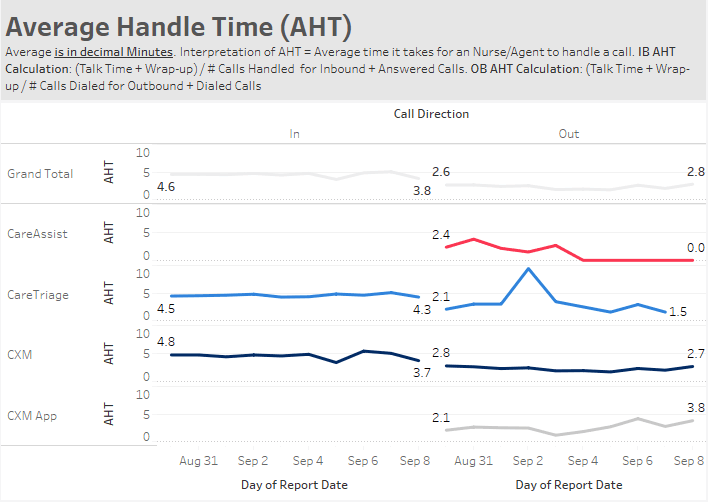
Average Handle Time (AHT) - This tile shows the billable Average Handle time in decimal minutes for both Inbound and Outbound calls in separate columns.. Average Handle time is the average time it takes for a nurse or agent to handle an answered call. AHT = (Talk Time + Call Wrap-Up time) / Number of Calls Handled. This tile shows one line for each team that answered calls. The lines that show are those relevant to the Organization(s) selected in the filters.
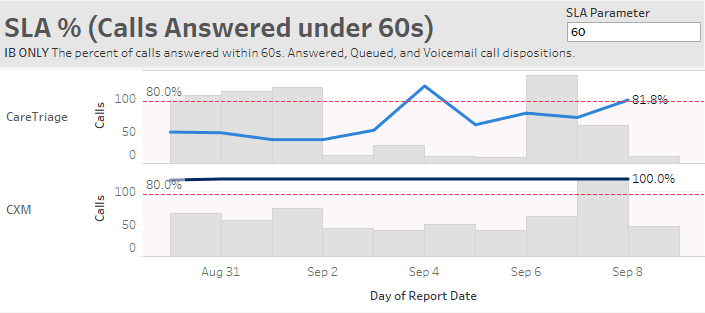
SLA Percentage - This tile will allow users to see the percentage of calls being answered within the number of seconds listed in the SLA filter for each Team. By default, this is set to 60 seconds, but users can adjust this as needed by typing in the seconds on the SLA Parameter box on the top right of the tile. The grey bars represent the total number of calls being considered for the calculation with the trend line showing the percentage of those calls that were answered within the SLA goal. The dashed red line shows the 80% goal.
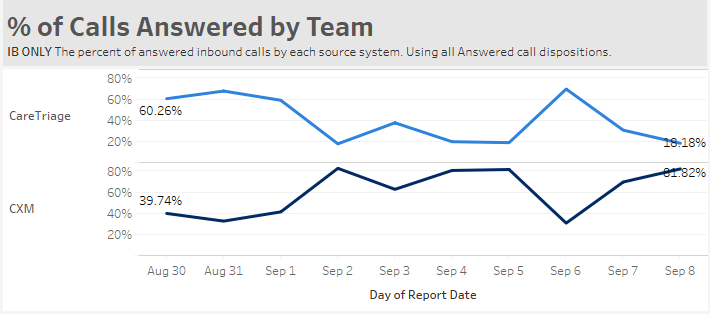
Percentage (%) of Calls Answered by Team - This tile shows the percent of inbound calls answered by each Team.
NOTE: Day/week/month button on other tiles - Call Volume, ASA, AHT, SLA %, and % of Calls Answered by Source System tiles have a +/- button on the bottom left corner that appears when the user hovers over the x or y axis of the visualization. When clicked, these buttons allow the user to change the visualization to show totals from day to week, week to month, month to quarter. Adjustments to this will stay within the time period the user has selected.
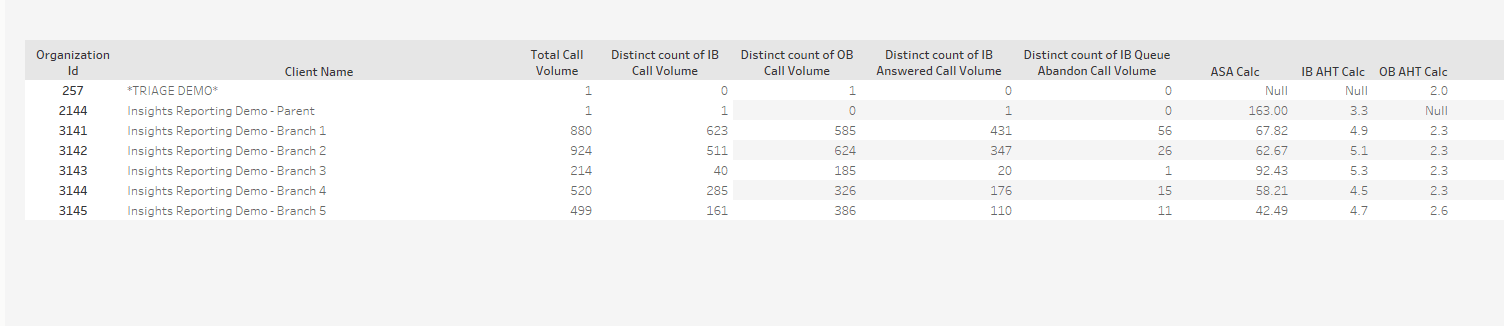
The table on the bottom summarizes the data in the report by Organization. The summary table will show one row per Organization with the columns of Distinct count of Inbound Call Volume, Distinct count of Answered Call Volume, Distinct count of Inbound Queue Abandon Call Volume, and ASA (Average Speed of Answer).
Related Articles